
EN
TR
All password management is handled through Google Workspace.
No real company or IT person will ever ask you to read out your 6-digit code. If someone does, it's a scam.
Take it slowly. Tick each box as you finish it — your progress is saved on this page. Click any screenshot to enlarge it.
0 of 22 complete
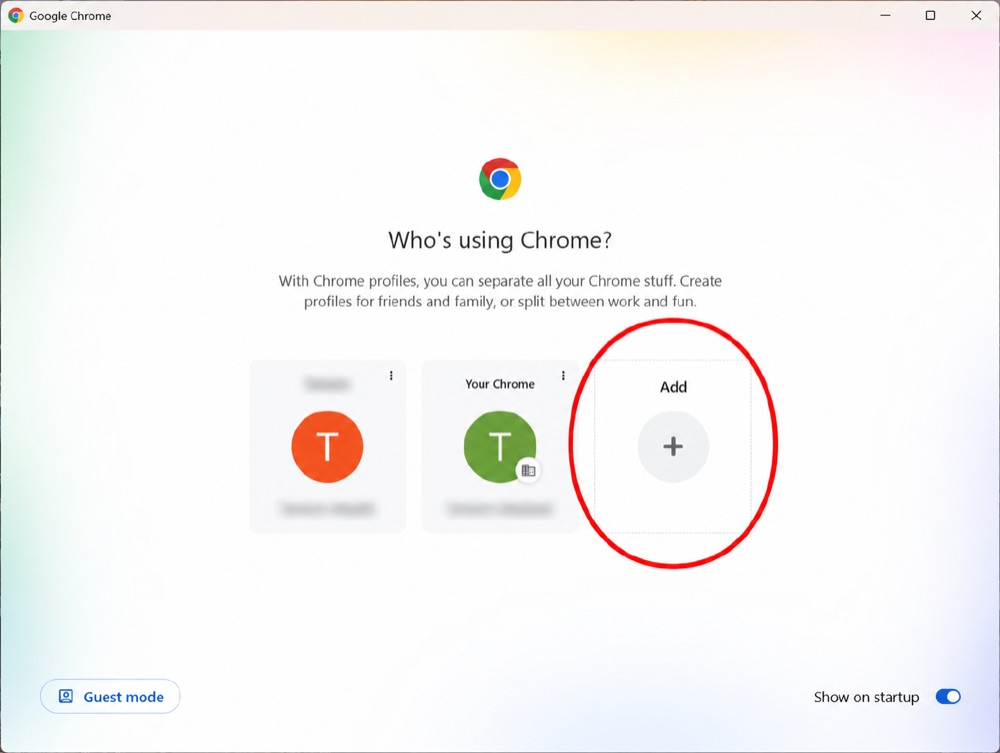
Open Google Chrome. On the first screen (“Who’s using Chrome?”), choose Your Chrome to begin.
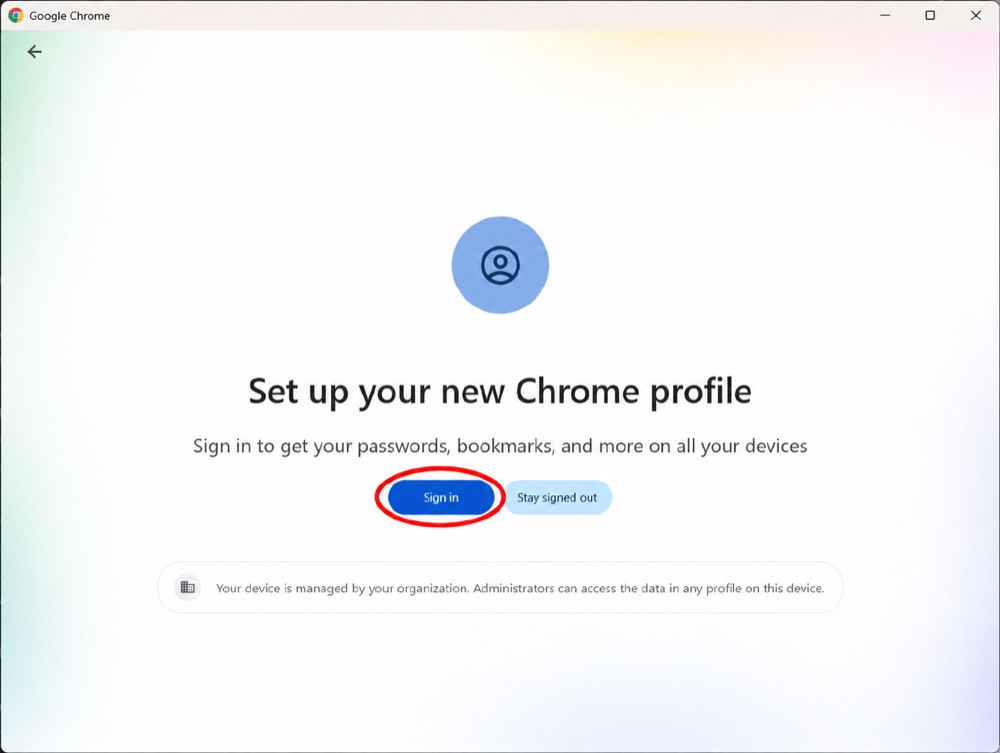
Chrome asks you to sign in so your bookmarks and passwords follow you on all your devices. Click Sign in to continue.
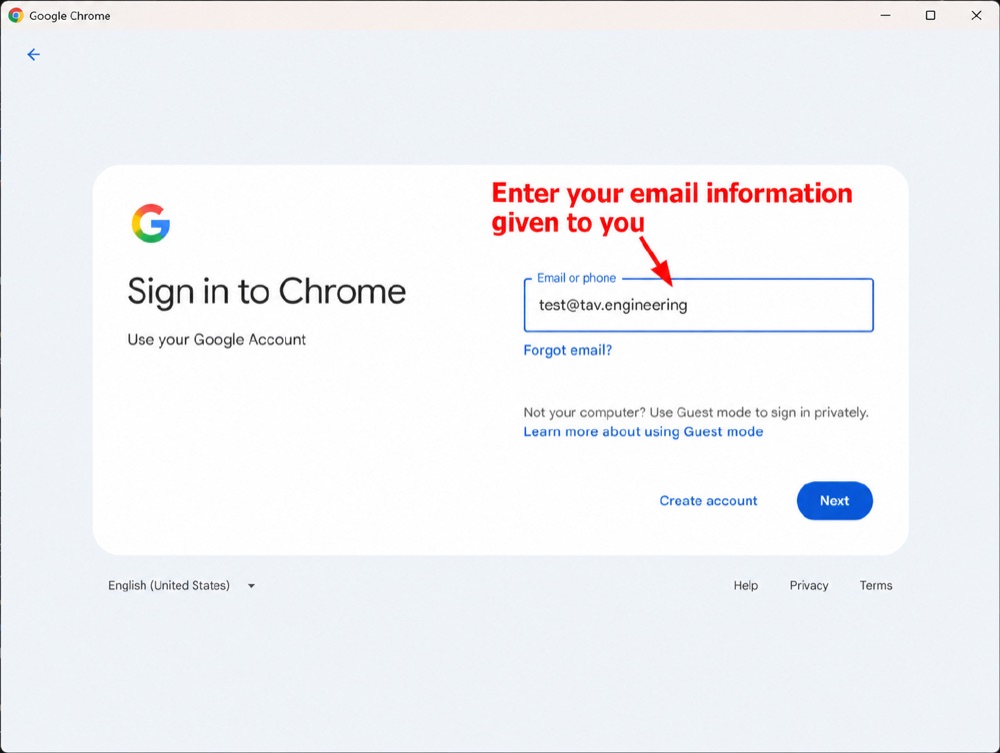
Type the work email address given to you (your @tav.engineering address), then click Sign in to Chrome.
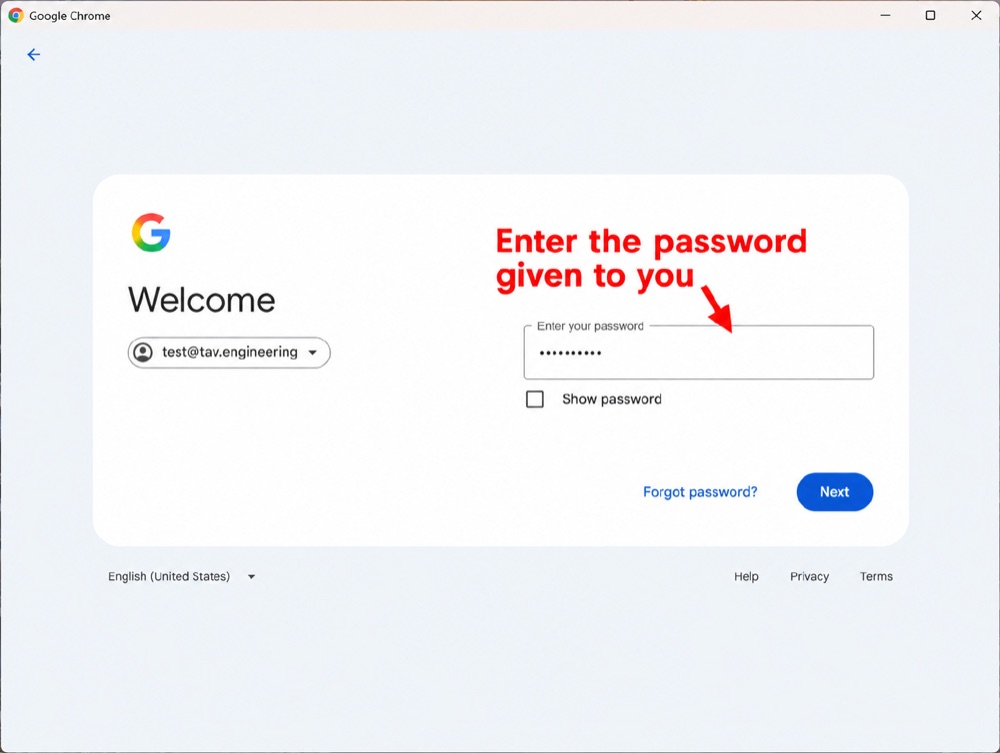
Enter the temporary password that was given to you, then click Next.
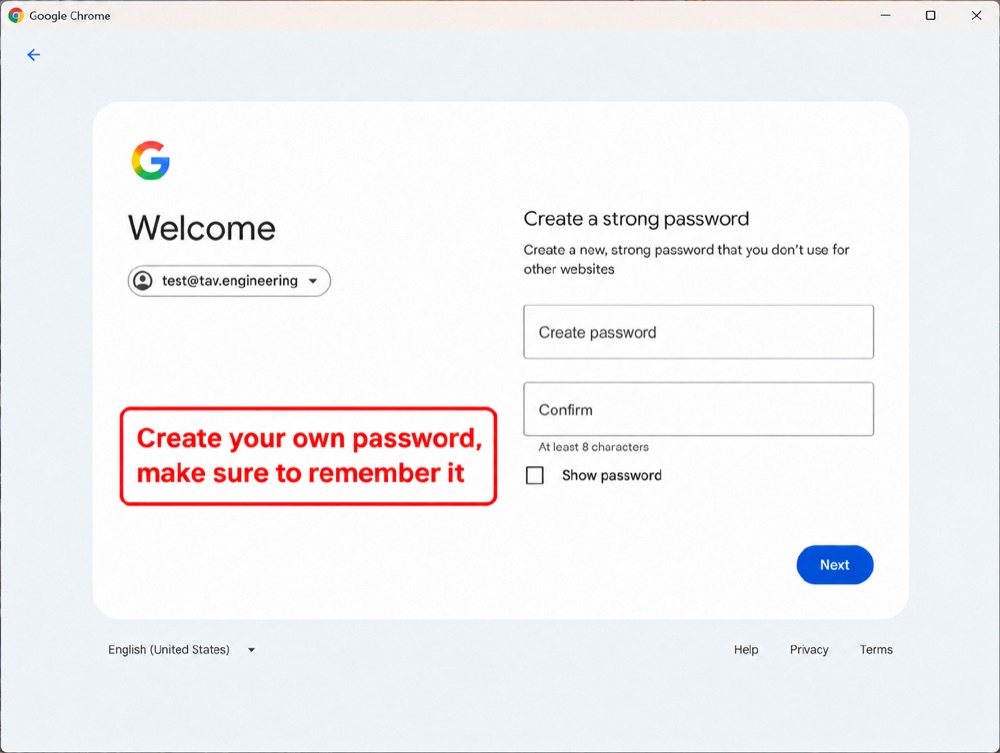
Now choose a new, strong password that you don’t use on other websites. Enter it, confirm it, and make sure you’ll remember it.
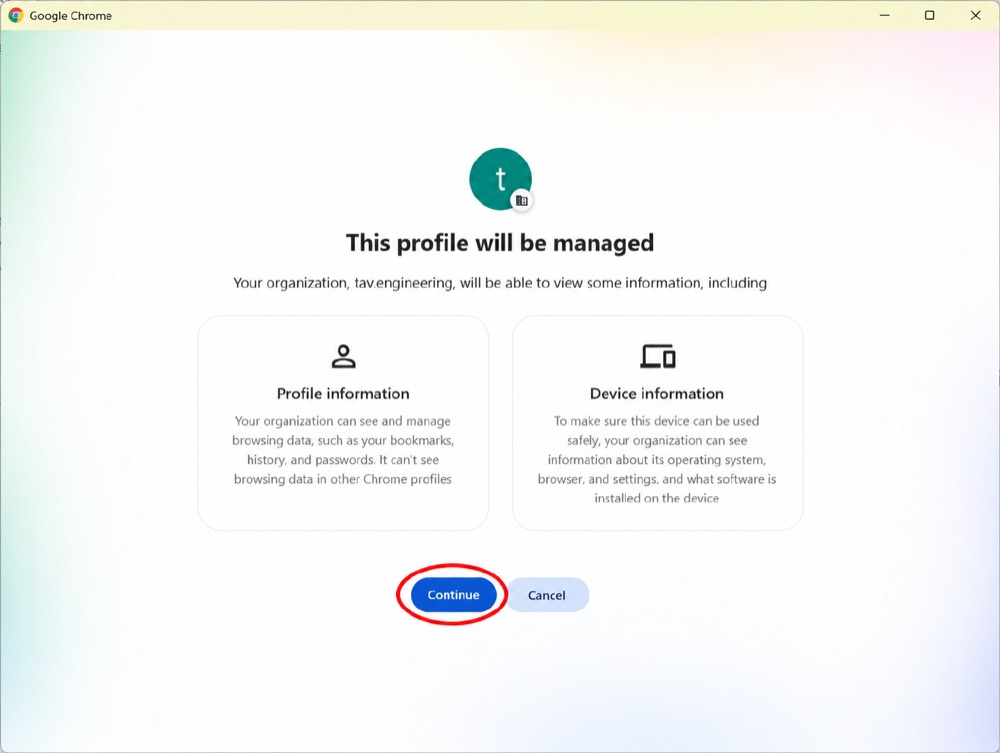
This screen explains that tav.engineering manages your work profile. Read it and click to continue.
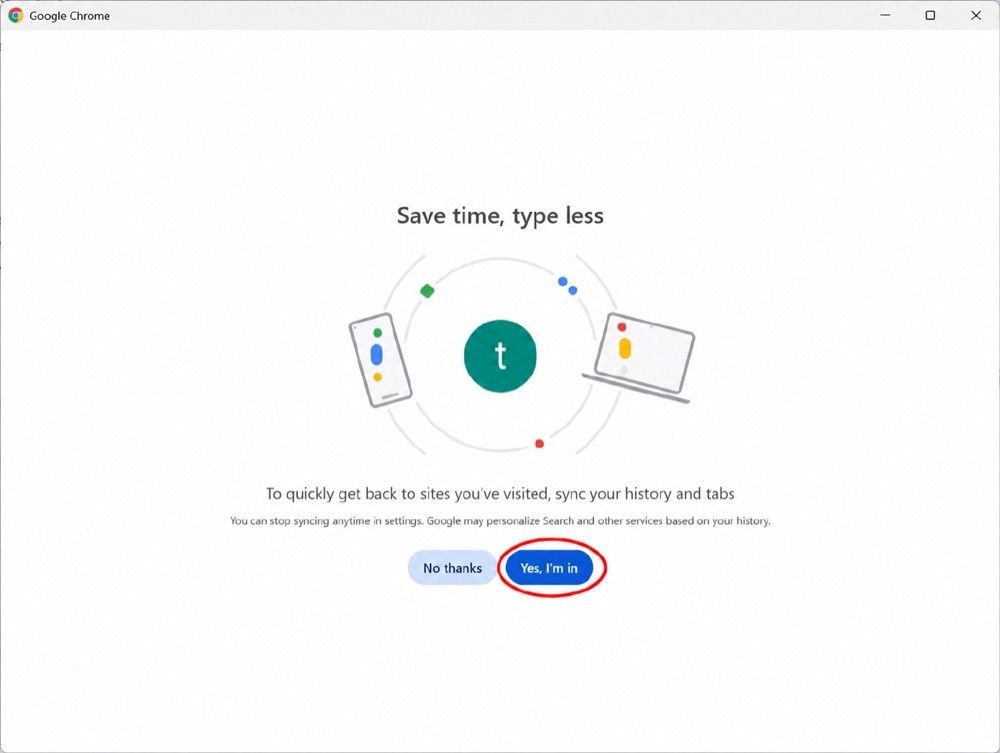
Chrome can sync your history and tabs across your devices. Choose Yes, I’m in to turn it on.
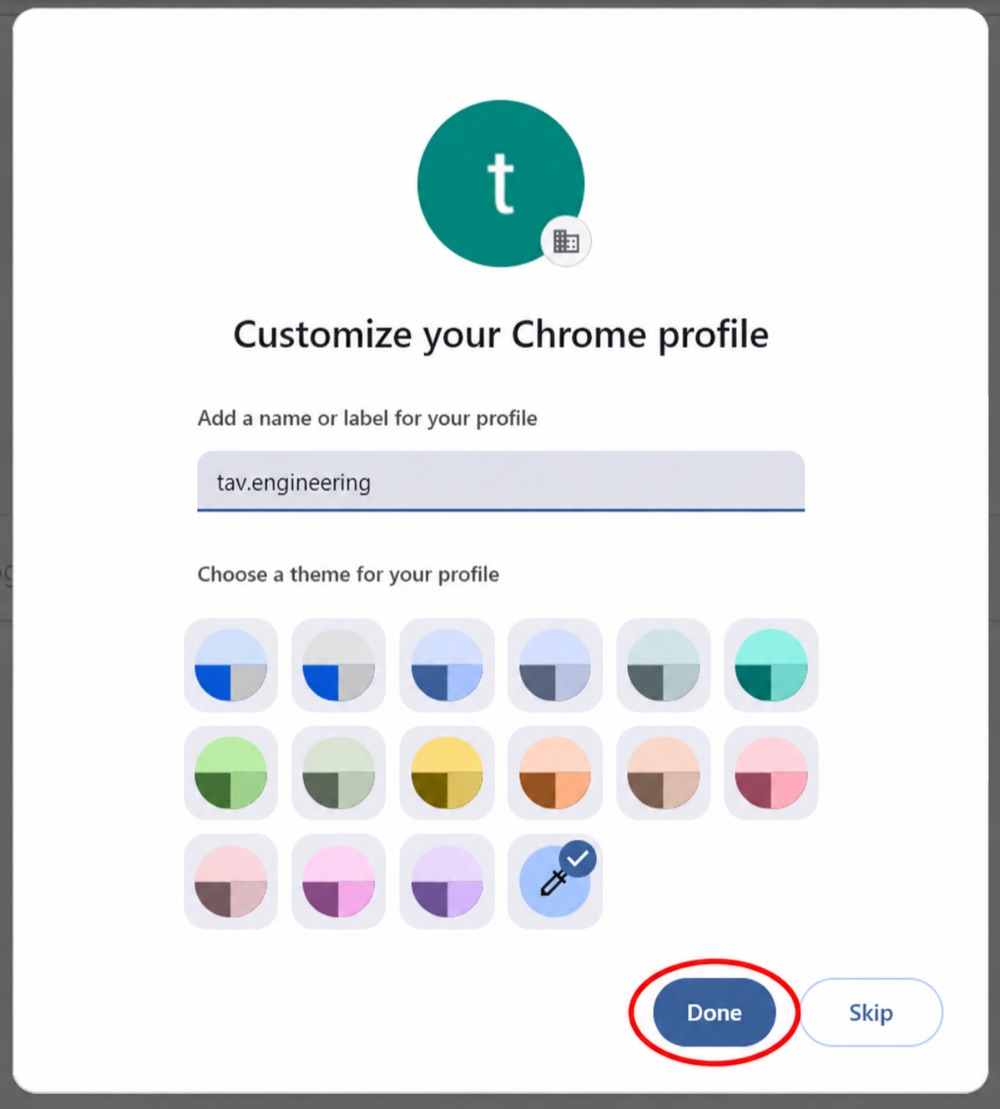
Add a name or label for your profile (for example tav.engineering) and pick a theme, then continue.
You’ll now see Chrome’s start page with the Google search box. Nothing to do here — just get familiar with it.
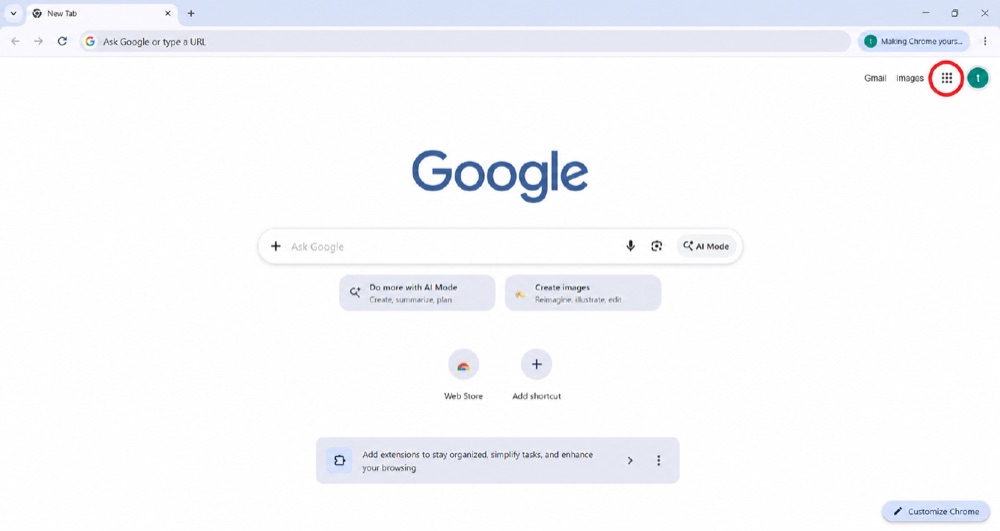
From the start page you can open Gmail, Drive, Calendar and more. Click Gmail to open your inbox (or move to the next step).
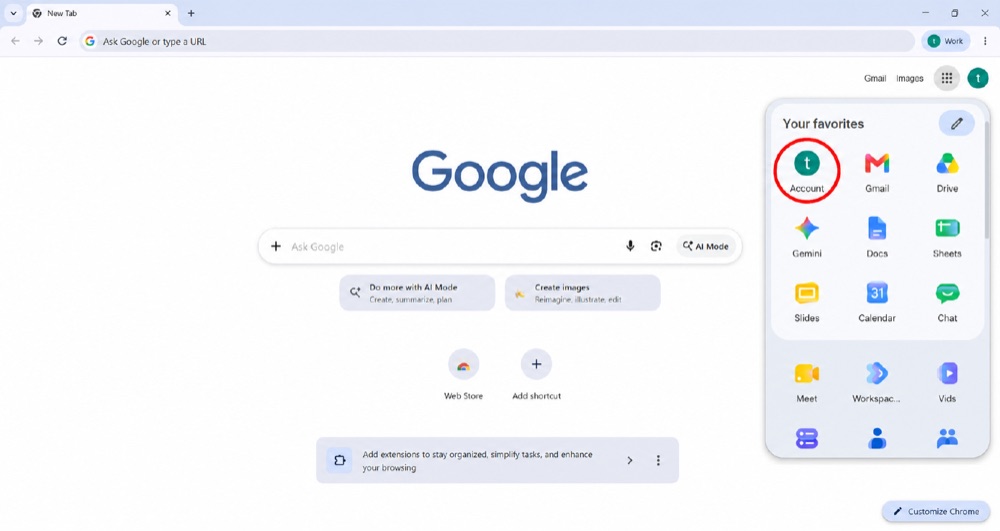
Click your profile picture (top-right corner) and choose Google Account, or go to myaccount.google.com.
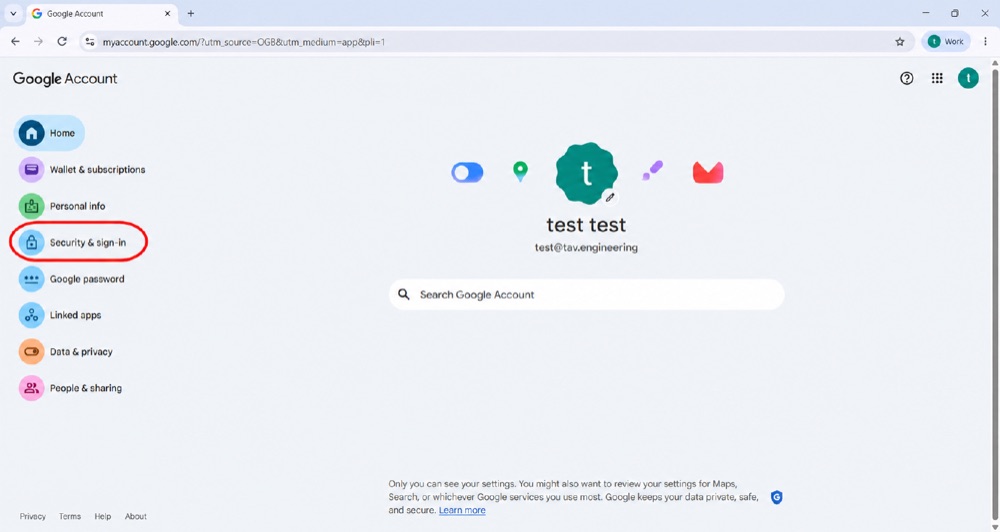
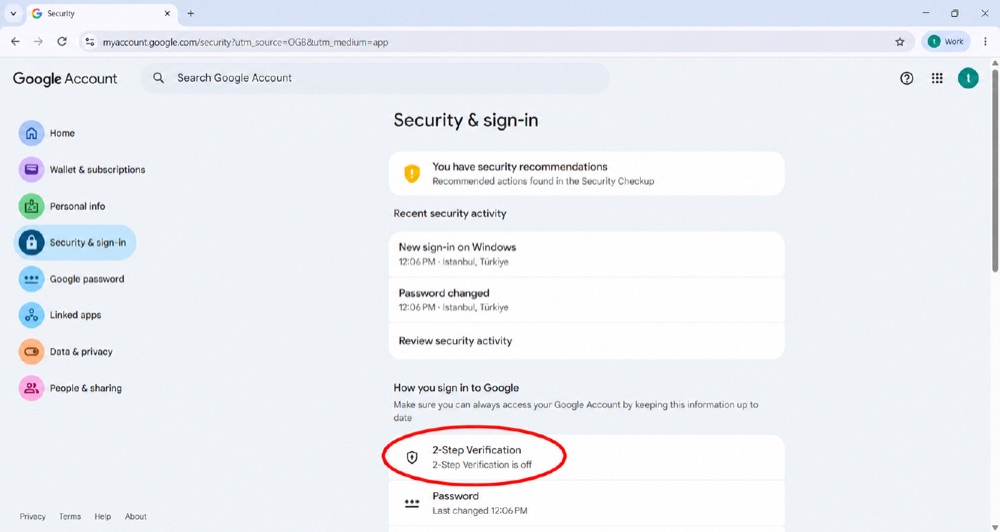
In your Google Account, click Security in the left menu. You’ll see “2-Step Verification is off” — we’ll turn it on next.
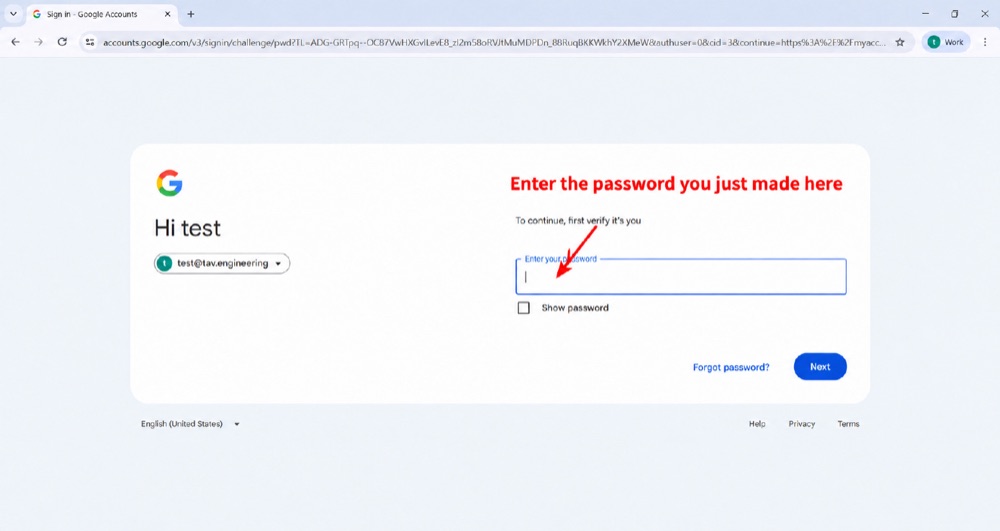
Google asks you to enter the password you just created to confirm it’s you. Type it and click Next.
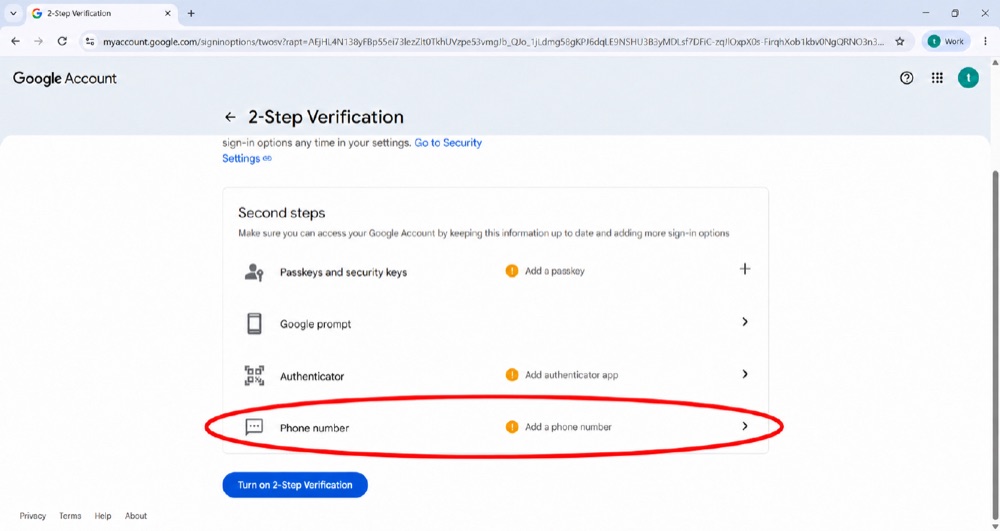
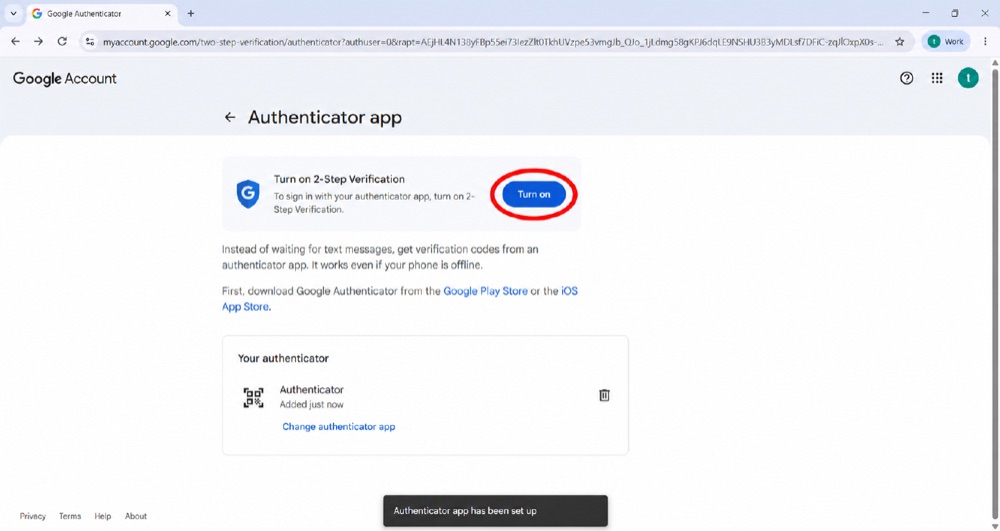
On the 2-Step Verification page, click Turn on.
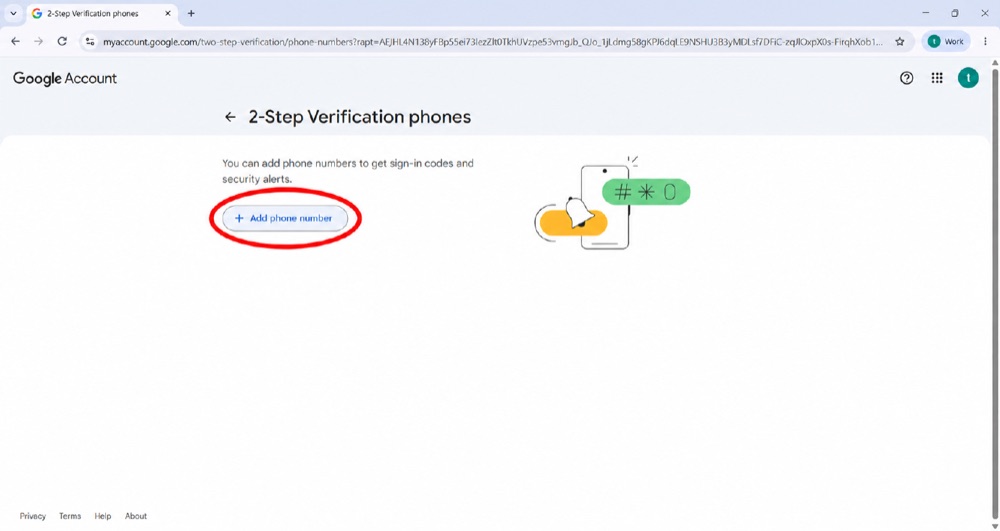
Google suggests adding your phone as a backup. Click Add phone number to continue.
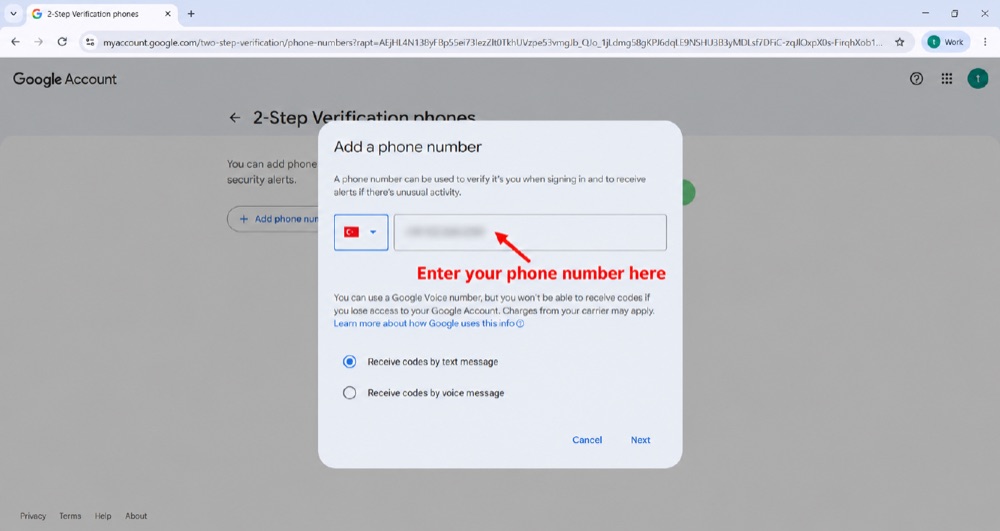
Type your phone number and choose how to receive codes (text message is easiest), then click Next.
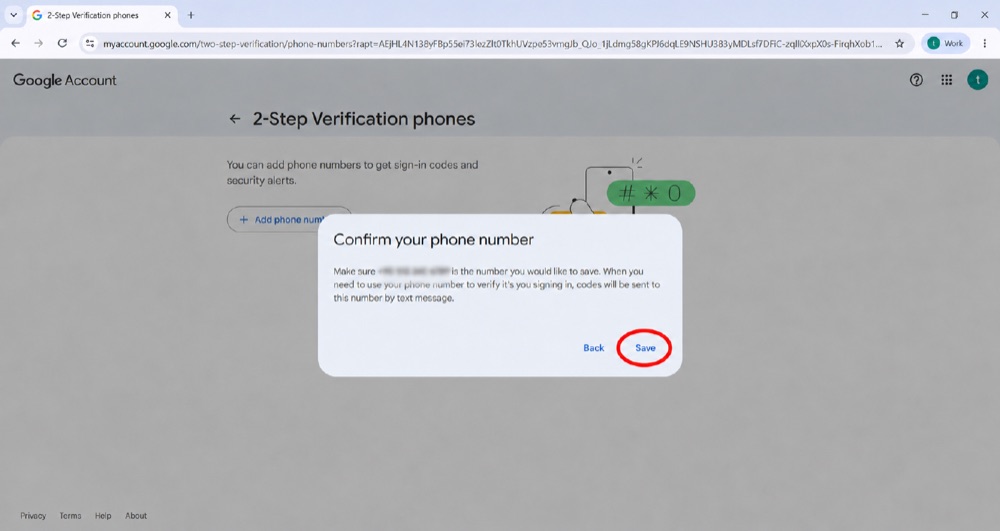
Check that the number shown is correct. You’ll receive codes by text message to this number.
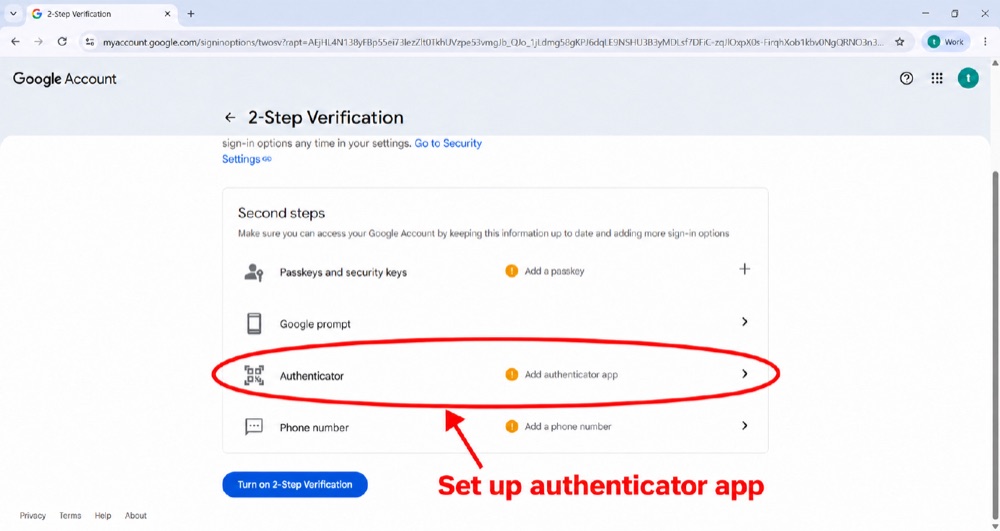
Back on the 2-Step Verification page, click Set up authenticator app next to “Authenticator”.
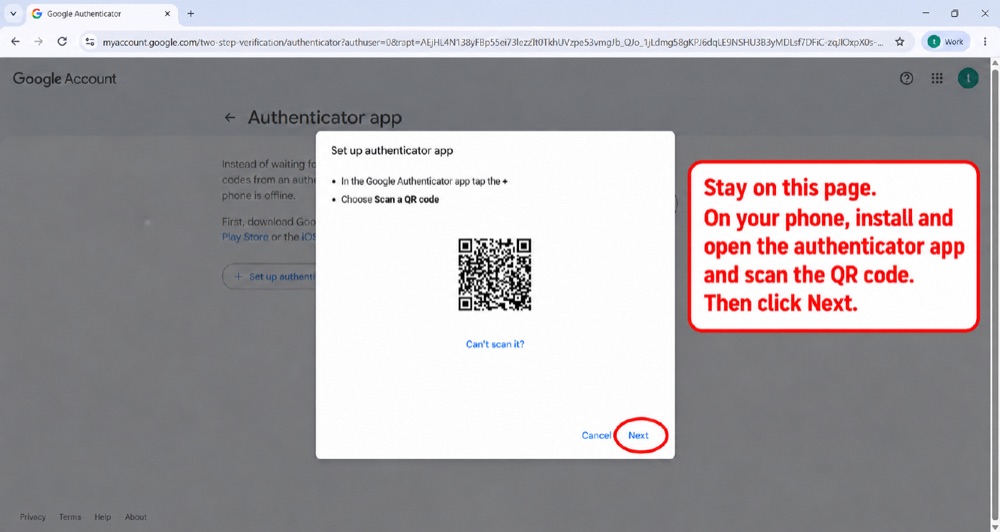
Install and open the Google Authenticator app on your phone, tap + and choose Scan a QR code, then point your camera at the code on screen. Click Next.
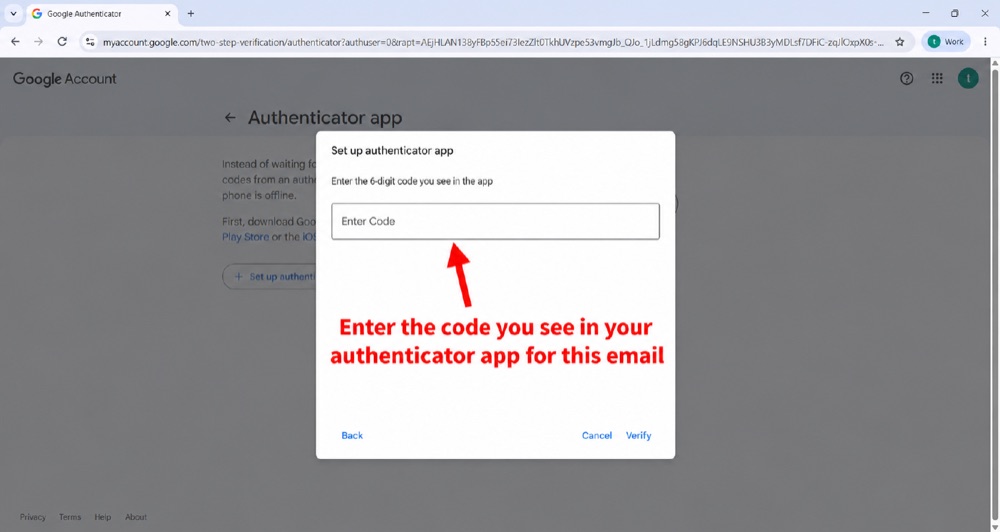
Type the 6-digit code shown in the Authenticator app, then click Verify.
You’ll see “Authenticator — Added just now” under your account. Your authenticator app is now linked.
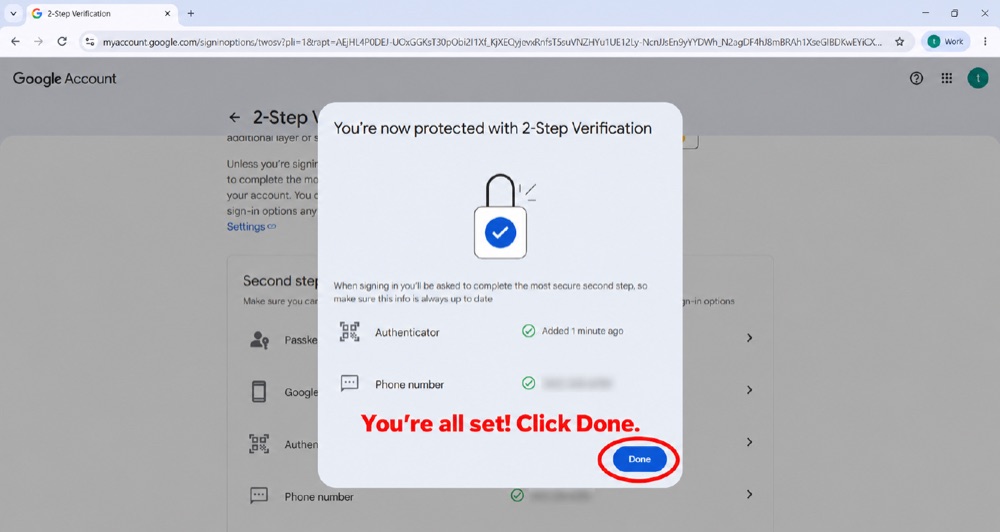
Click Done. 2-Step Verification is now turned on. 🎉
A few things people often ask. Tap a question to open it.
The most common fix: make sure your phone’s clock is set to automatic time (Settings → Date & Time). If the clock is even a little off, the codes won’t match. Also check you’re reading the code for the right account.
On your new phone, install Google Authenticator, then sign in to your Google account inside the app — your codes can be restored. Or ask your IT team to re-issue your QR code so you can scan it again.
Tell your IT team right away — they can temporarily help you get in and set things up again. This is exactly why two-step verification protects your account: no phone, no one else gets in either.
Often you can tick “Remember this device” when signing in, so you won’t be asked again on that same computer or phone for a while. The extra code is mostly asked on new devices or when extra security is needed.
Yes. The app stores your codes on your phone only, and nothing is sent to Google. Codes are generated on the spot and change every 30 seconds, so they can’t be guessed or reused.
No real company or IT person will ever ask you to read out your 6-digit code. If someone does, it’s a scam — hang up or ignore the message.