
EN
TR
Corporate email accounts, the email app and signature details.
New @tav.engineering email accounts will be opened. Existing @tavc.com.tr addresses will keep working for a while.
Your @tav.engineering Google account and multi-factor authentication (MFA) must be set up before you can access this service. See the Passwords & Accounts guide.
Because Microsoft support ends at year-end, MS Outlook will no longer be used. Instead, the company is moving to eM Client — an Outlook-like app that works with all email formats and operating systems.
eM Client is also available for iPhone, iPad and Android. It combines Mail, Calendar, Contacts, Tasks, Notes and AI in one app and syncs with the same account.
Tip: after setting up eM Client on your computer, use the Import via QR option in the mobile app to copy your settings in a few taps.
eM Client brings Mail, Calendar, Contacts, Tasks and Chat into one window — folders on the left, toolbar on top, message list in the middle. It feels very much like Outlook.
eM Client offers AI-assisted writing, reply suggestions and summarization via its built-in AI assistant.
Once eM Client is installed, follow these steps to add your mail account. Work through each screen one at a time — the screenshots below match what you’ll see. Click any screenshot to enlarge it.
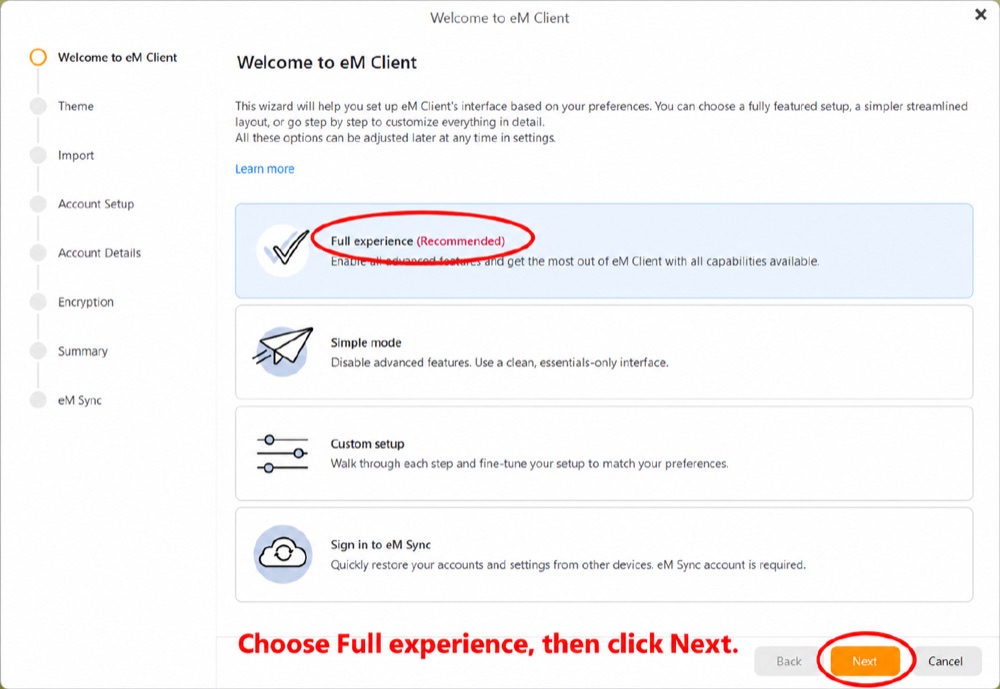
When you first open eM Client, the setup wizard appears. Choose Full experience (Recommended), then click Next.
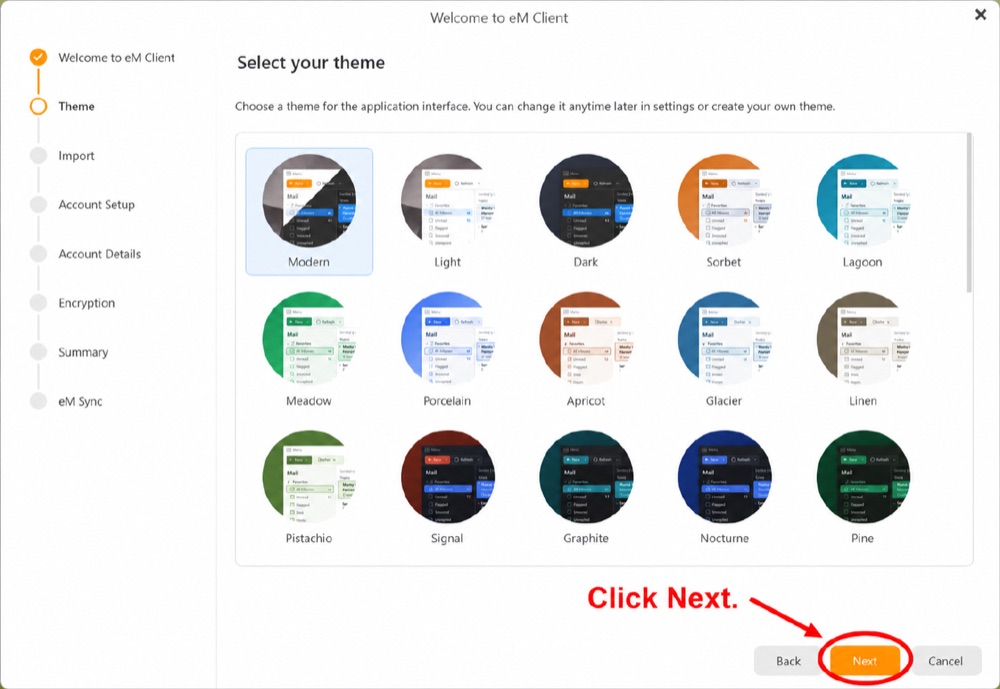
Pick a colour theme you like — you can change it any time later in Settings. Click Next.
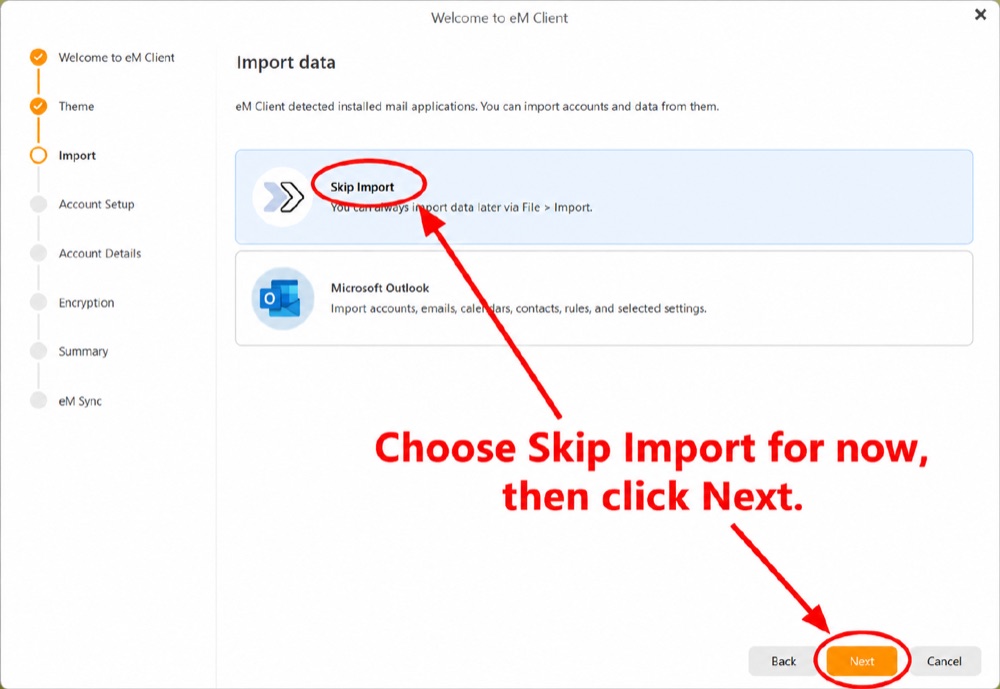
eM Client may offer to import data from another mail app (for example Outlook). Choose Skip Import for now, then click Next.
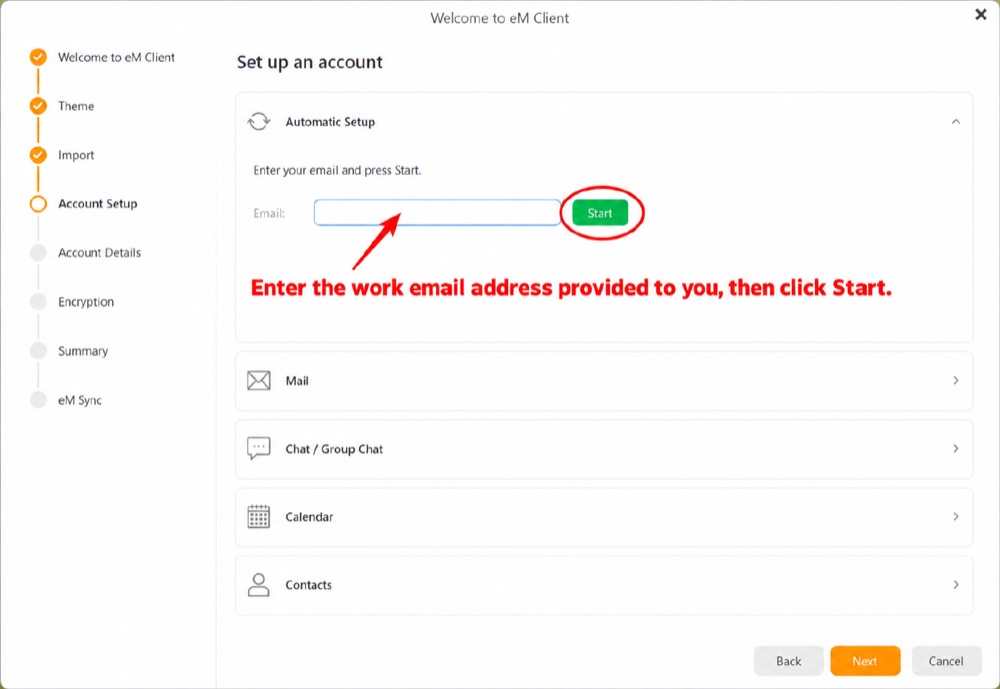
Type your @tav.engineering work email address, then click Start.
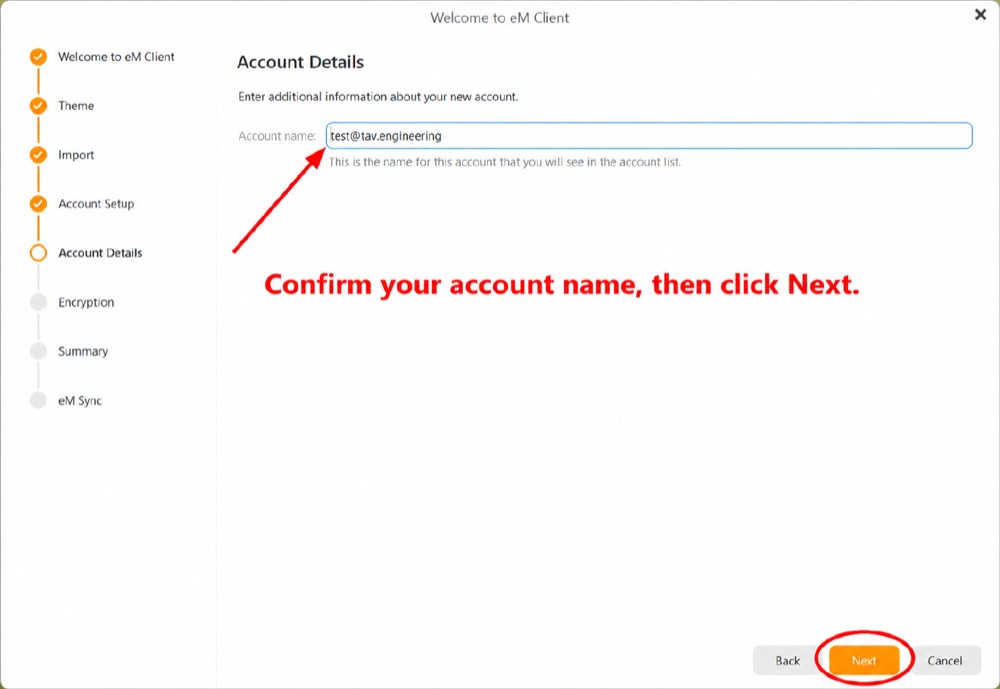
Check that your account name looks correct (for example test@tav.engineering), then click Next.
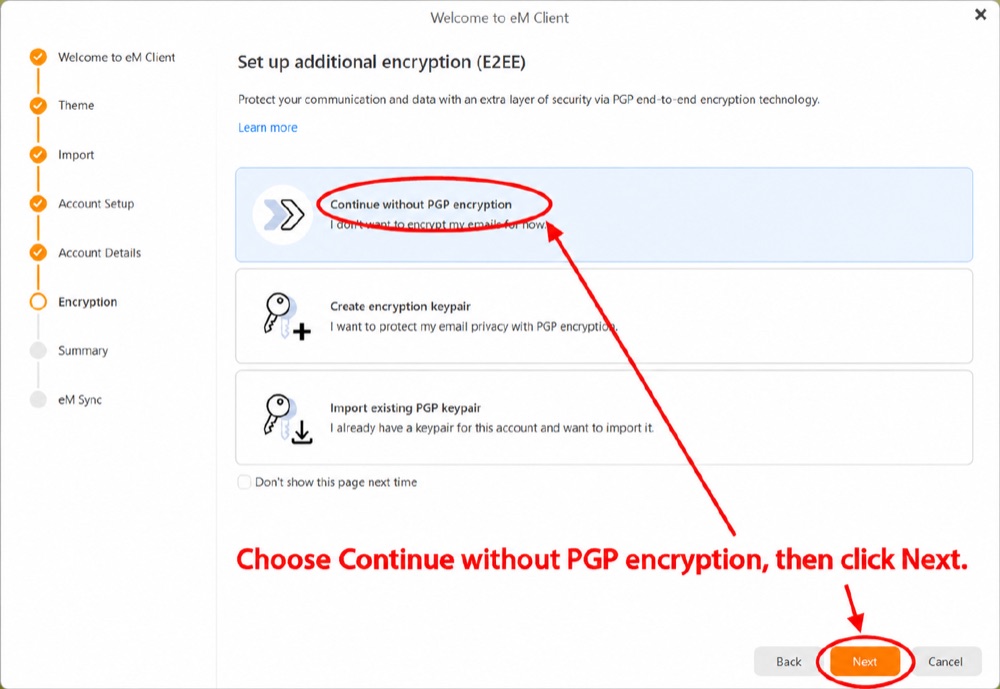
Choose Continue without PGP encryption, then click Next. You don’t need extra encryption for your work email.
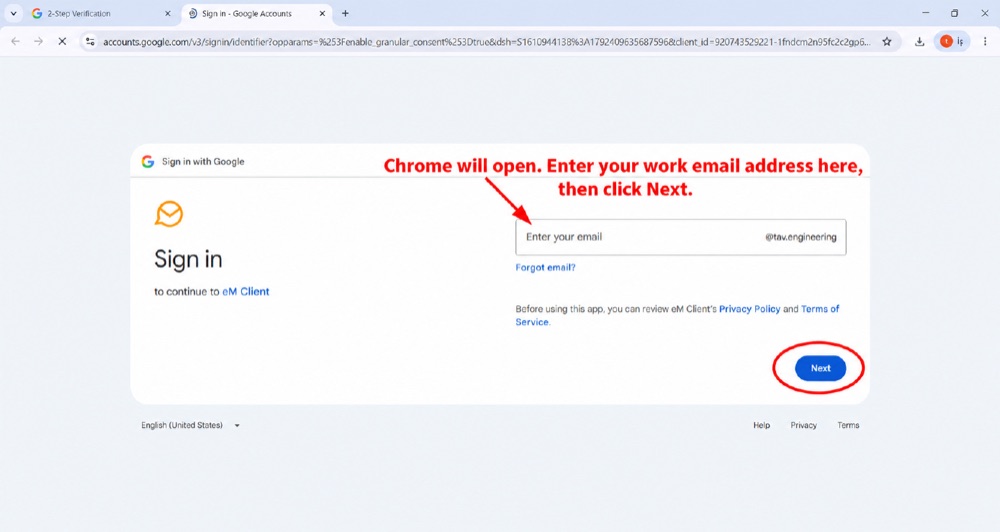
A Google sign-in window opens. Enter your @tav.engineering email address, then click Next.
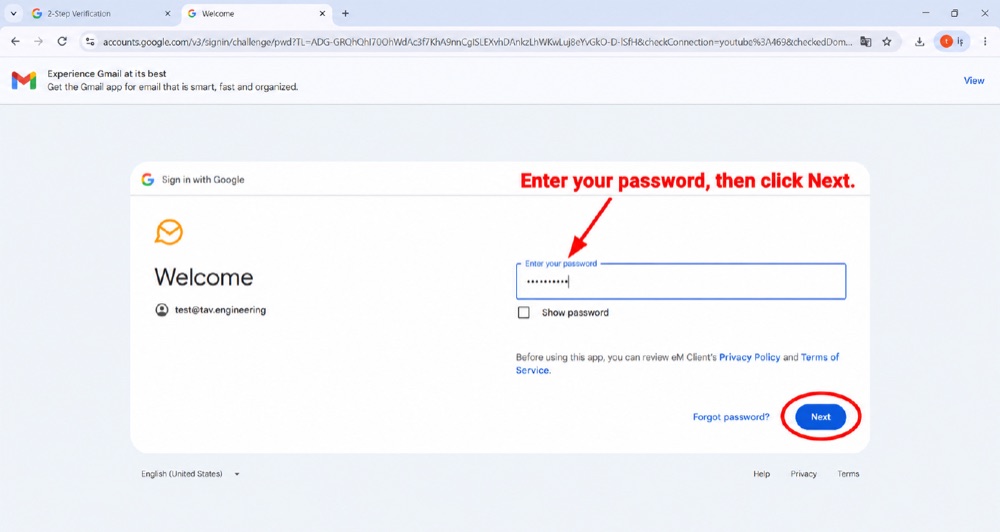
Enter the password for your work account, then click Next.
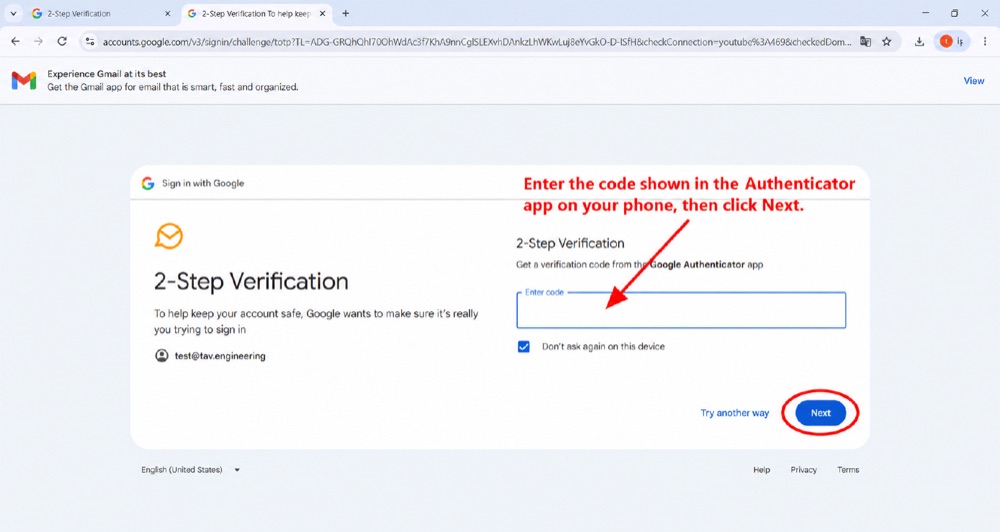
Google asks for the 6-digit code from the Google Authenticator app on your phone. Enter the code, then click Next.
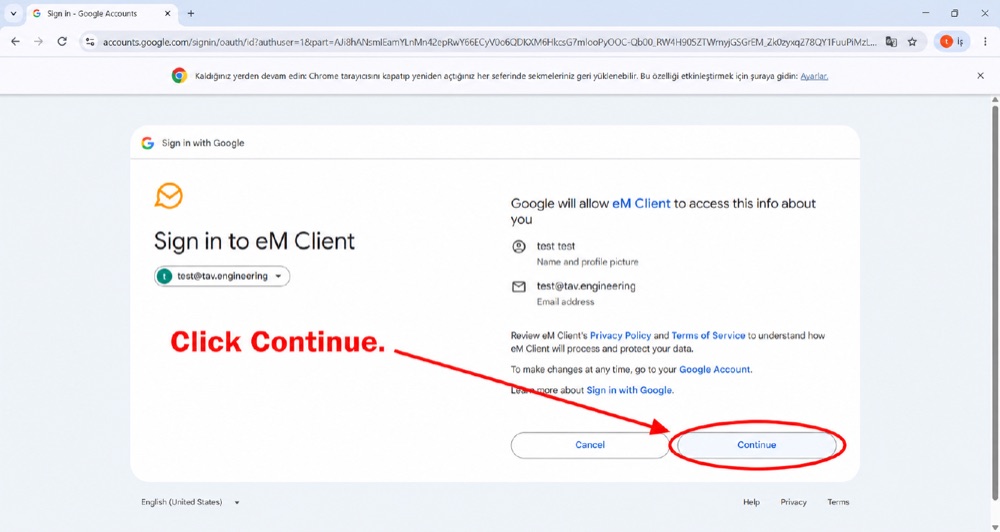
Google shows what eM Client can access. Click Continue to allow access.
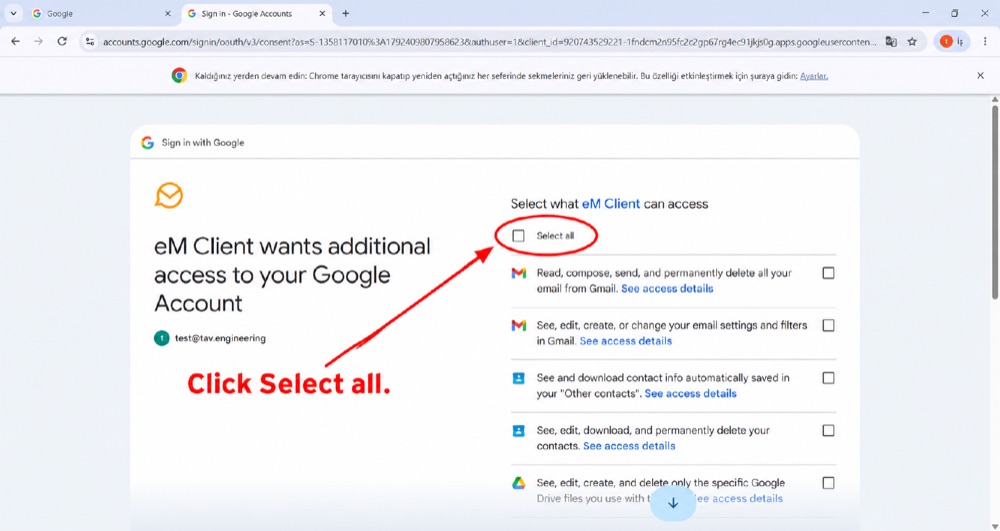
Click Select all so eM Client can manage your mail, calendar and contacts.
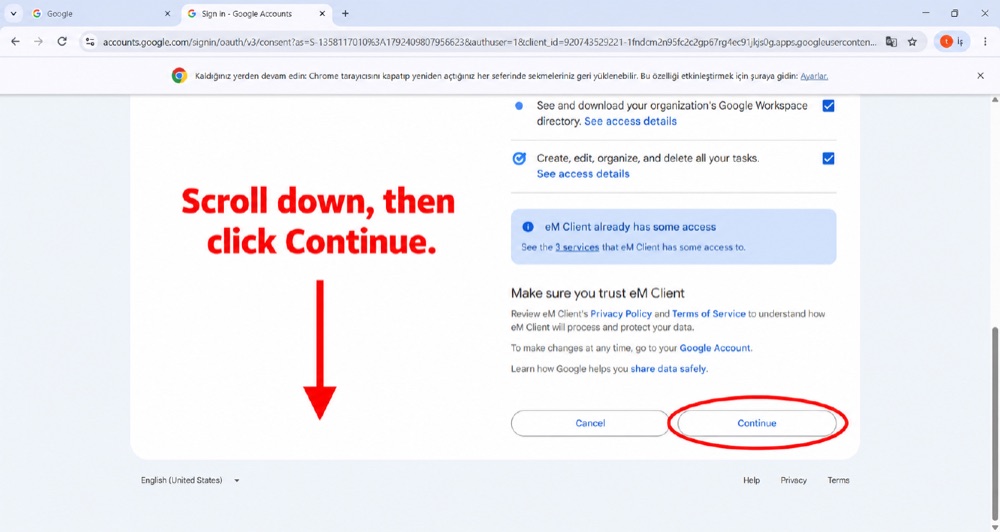
Scroll down through the list of permissions, then click Continue.
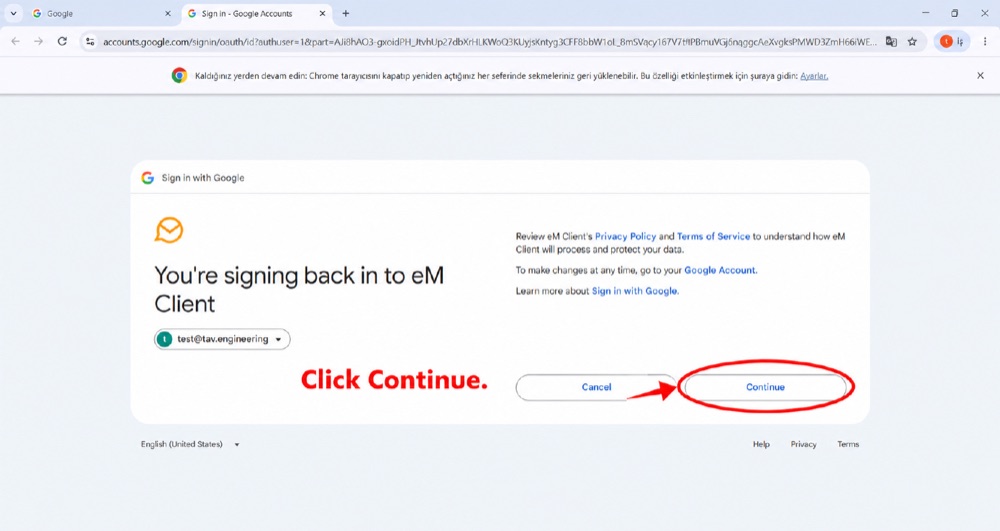
Click Continue to finish signing in to eM Client.
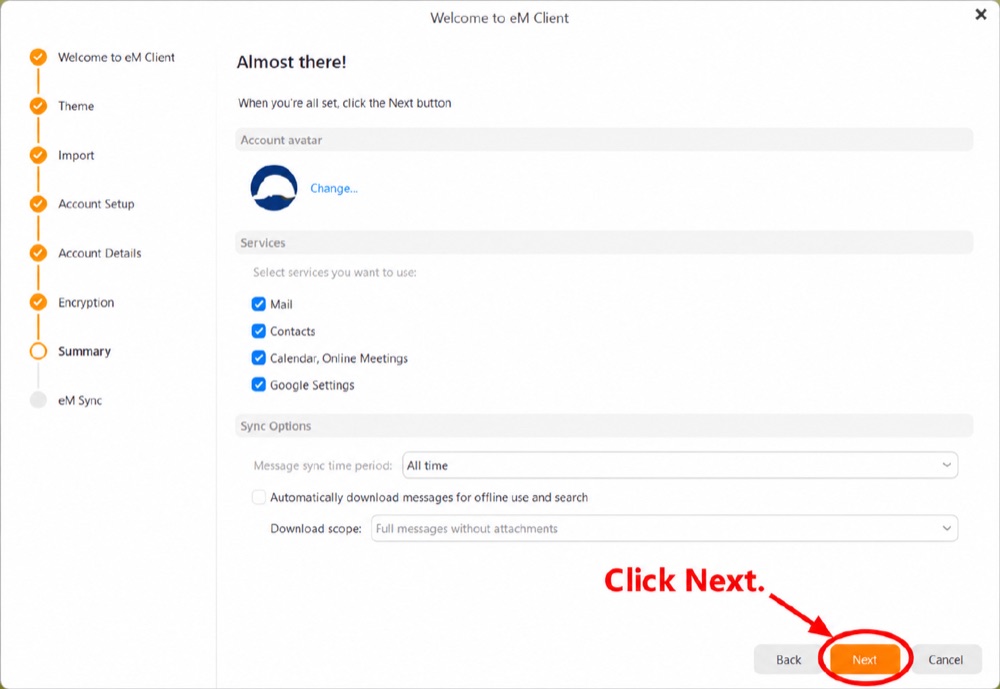
Review the services you want to use (Mail, Contacts, Calendar). Click Next.
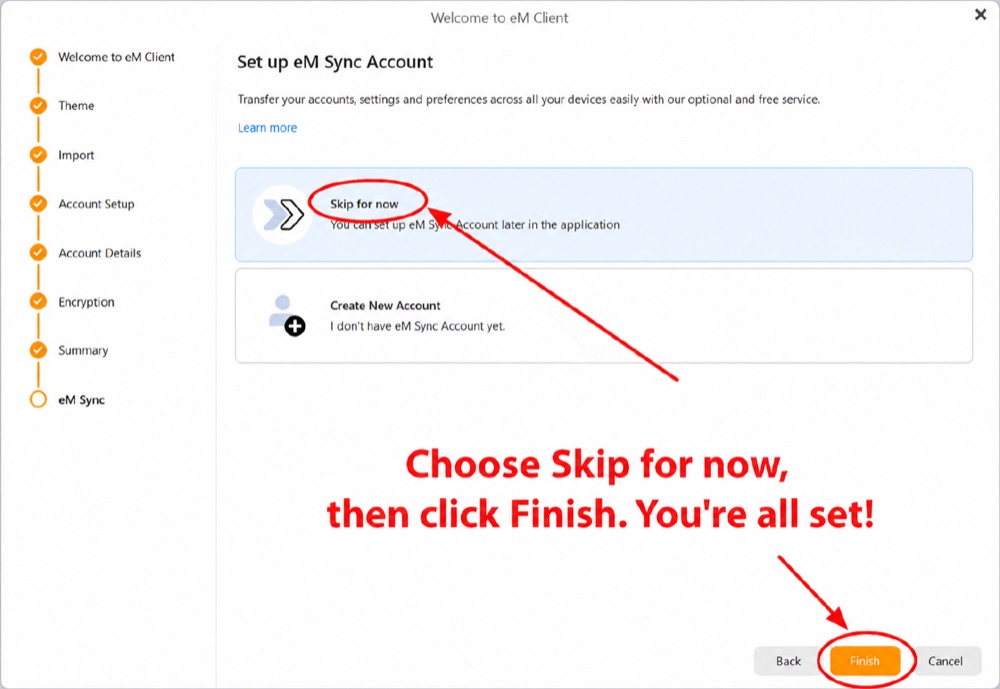
Choose Skip for now, then click Finish. You’re all set!
Your signature is uploaded to your account automatically:
Mehmet Yilmaz
Finance Coordinator
TAV Engineering

T +90 212 491 58 61
M mehmet.yilmaz@tav.engineering
W www.tav.engineering